When an interactive whiteboard stops responding in the middle of a lesson or a board meeting, the support ticket rarely explains why. It simply says "interactive whiteboard not working". For a school IT team, that means a lost lesson. For a distributor, it means a return shipment, a site visit and a customer who starts to doubt the brand. Multiply that by 50, 100 or 500 panels, and touch faults become the most frequent after-sales topic of any deployment.
This guide is written for IT managers, system integrators and distributors who support interactive flat panels in daily operation. It explains how to fix interactive whiteboard touch calibration errors, ghost touch, lag and pen faults, and how to run interactive flat panel troubleshooting at fleet level instead of room by room. It is written from the point of view of a manufacturer: Qtenboard designs, builds, tests and supports interactive whiteboards for schools and business, so we see which faults repeat and which ones can be prevented.
Quick answer: most cases of an interactive whiteboard not working fall into five groups, and only the last one needs a replacement part.
You need a repeatable checklist that a campus coordinator can follow without calling headquarters, and a clear point at which to escalate.
You need to resolve most tickets remotely, avoid unnecessary returns, and show your customer a documented support process.
You need meeting-room panels that respond instantly, with a support path that does not depend on a single technician.
Before opening any menu, classify the symptom. A five-minute triage prevents most unnecessary service calls and gives the support team a precise description to work from. The table below is the starting point we recommend for any interactive whiteboard touch not working ticket.
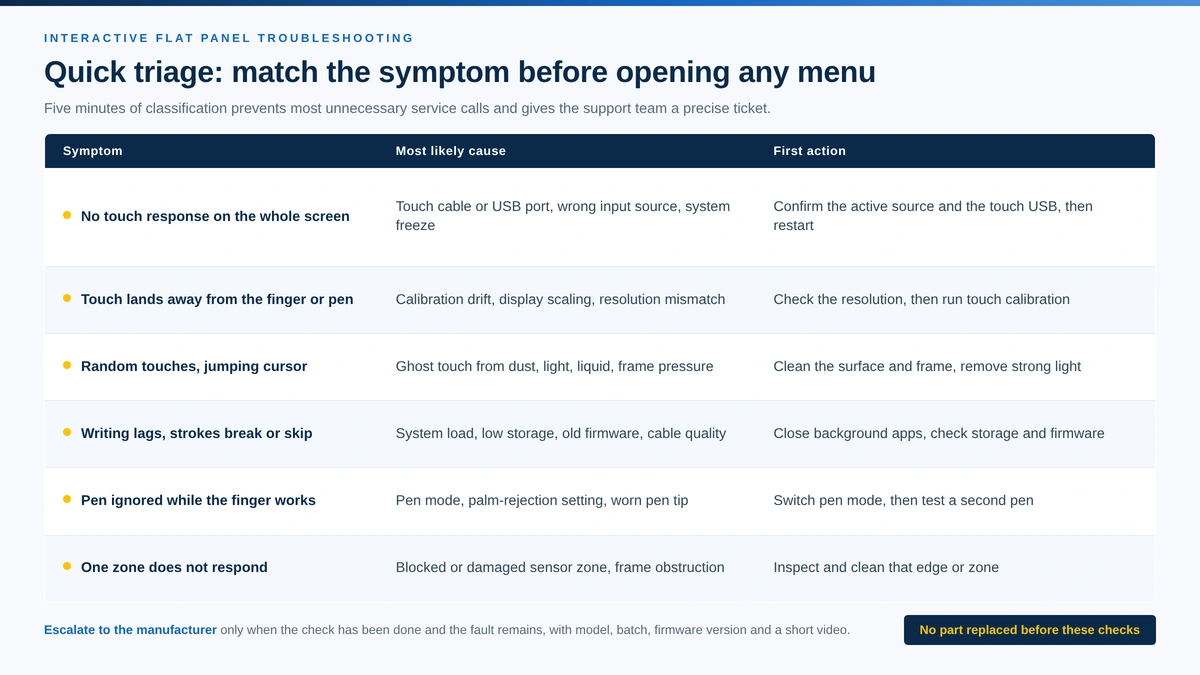
Classify the symptom first: the pattern of the fault points to the cause.
| Symptom | Most likely cause | First check | Escalate when |
|---|---|---|---|
| No touch response on the whole screen | Touch cable or USB port, wrong input source, system freeze | Confirm the active source and the touch USB connection, then restart | Still no response after reconnecting and restarting |
| Touch lands away from the finger or pen | Calibration drift, display scaling, resolution mismatch | Check resolution and scaling, then recalibrate | Offset returns after every restart |
| Random touches, jumping cursor, self-clicking | Ghost touch from dust, light, liquid, frame pressure or static | Clean the surface and frame, remove strong light on the sensor | Ghost touch persists in a dark, clean room |
| Writing lags, strokes break or skip | System load, low storage, old firmware, cable quality | Close background apps, check storage and firmware | Lag continues on a clean system |
| Pen is ignored, finger works | Pen mode, palm-rejection setting, worn pen tip | Switch pen mode and test with another pen | No pen works in any mode |
| One zone does not respond | Blocked or damaged sensor area, frame obstruction | Inspect and clean that edge or zone | The zone stays dead after cleaning |
Touch calibration maps the physical position of a finger or pen to a position on the display. When that mapping drifts, the cursor appears next to the touch point instead of under it. Interactive whiteboard touch calibration problems are most common after a resolution change, after a display scaling change, after switching between the Android system and a Windows OPS module, or on a screen that has been connected to a second display.
Offset touch is easy to misdiagnose as a defective screen. A distributor who ships a replacement panel for a calibration setting pays for freight, loses days of classroom use and gains nothing. A correct first response solves the problem in minutes and protects the relationship with the school.
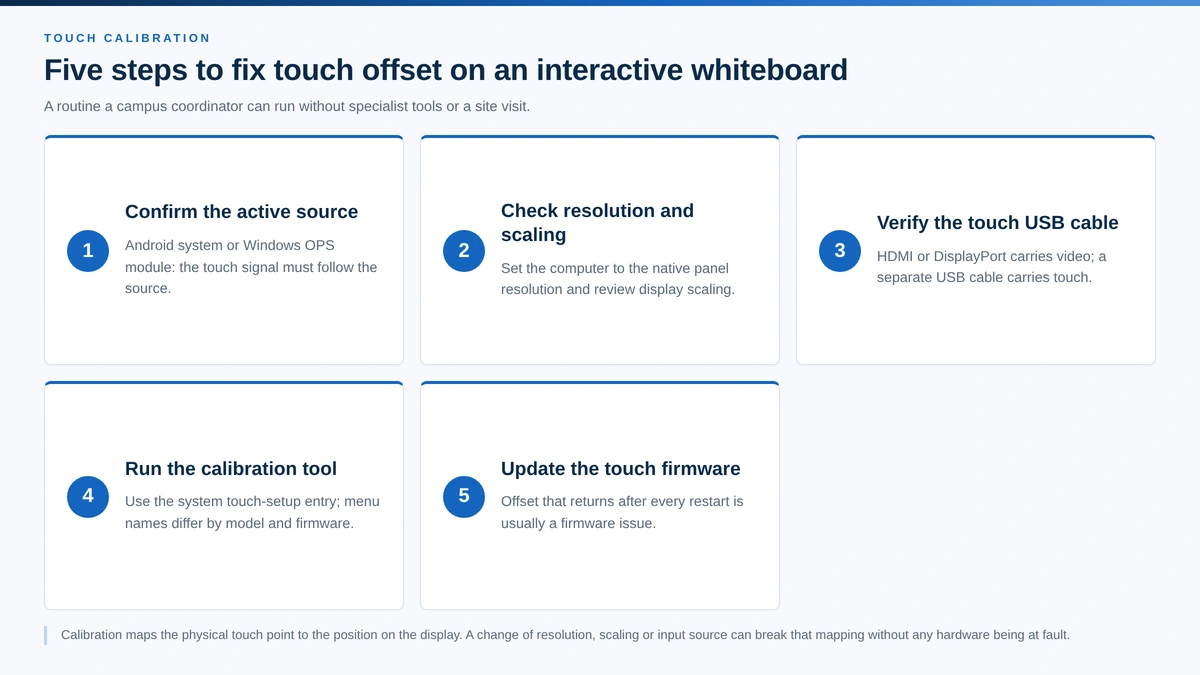
A five-step calibration routine that a campus coordinator can follow without specialist tools.
Panels that combine an Android system with a Windows module add one more variable: the touch signal has to be routed to the right system. Our guides to the Windows OPS module for interactive flat panels and the Windows and Android dual-system interactive whiteboard explain how the two systems share one touch layer.
Ghost touch means the panel registers touches that nobody made: windows open by themselves, the cursor jumps or lines appear on the canvas. The cause depends on the touch technology.
Ghost touch rarely appears in a showroom. It appears in real rooms: a classroom with a sunlit window, a meeting room with a poorly grounded power strip, a panel pushed too tightly into a wall frame. That is why a fault that "cannot be reproduced" on the factory bench often turns out to be an installation or environment issue. How the panel is mounted matters, which is covered in our comparison of wall mount vs mobile stand for interactive whiteboards; a room that has to switch between classrooms is usually best served by a mobile stand interactive flat panel.

Dust on the infrared frame and strong ambient light are two of the most common ghost touch triggers.
Structure also plays a role. Panels with a fully laminated screen reduce the air gap between the glass and the display, which improves touch precision and reduces parallax; see why high-end interactive whiteboards choose full lamination. For rooms with strong daylight, an Anti-glare interactive whiteboard helps both the picture and the touch environment.
A teacher who writes quickly and sees broken lines assumes the touch layer is faulty. In many cases the touch layer is fine and the system behind it is overloaded. Before replacing any part, check the following in order.
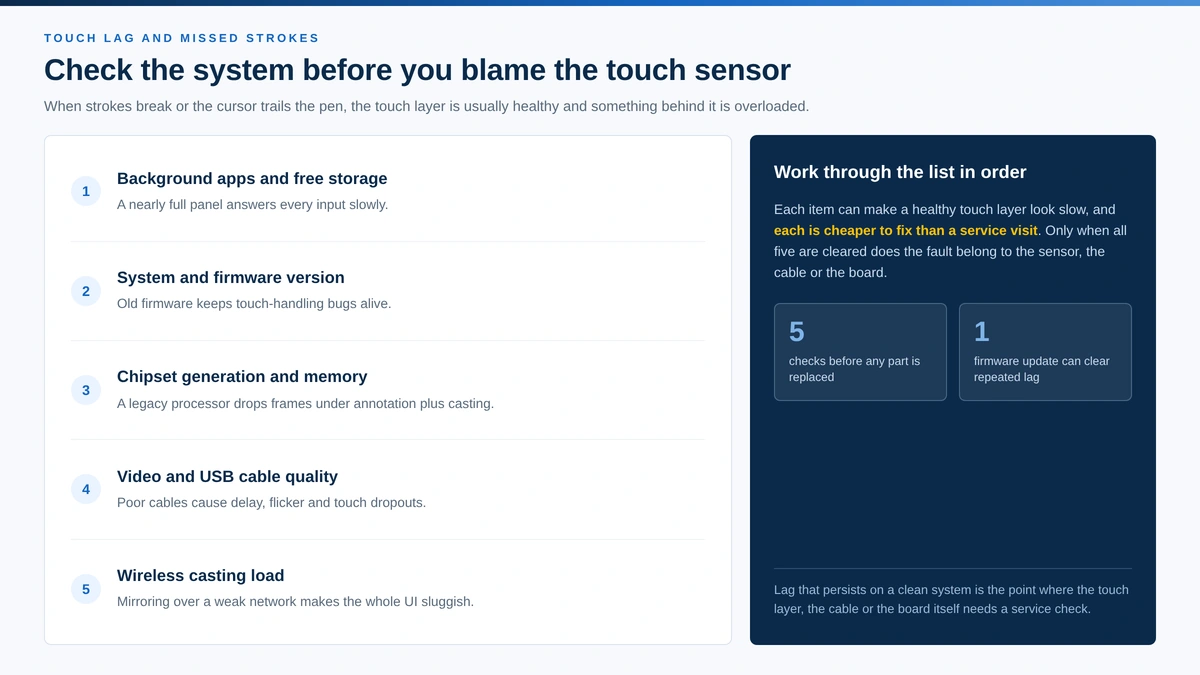
Check system load, firmware and cables before blaming the touch sensor.
Multi-user work puts the touch layer under more load. If your customers need several people writing at once, review the benefits of a multi-touch interactive whiteboard and make sure the panel's touch points and processor match the use case. A 65-inch IR touch interactive whiteboard covers the usual classroom pattern of four to ten simultaneous writers.
When the pen is ignored but a finger works, the touch layer is usually healthy. The problem is almost always a setting or the pen itself.
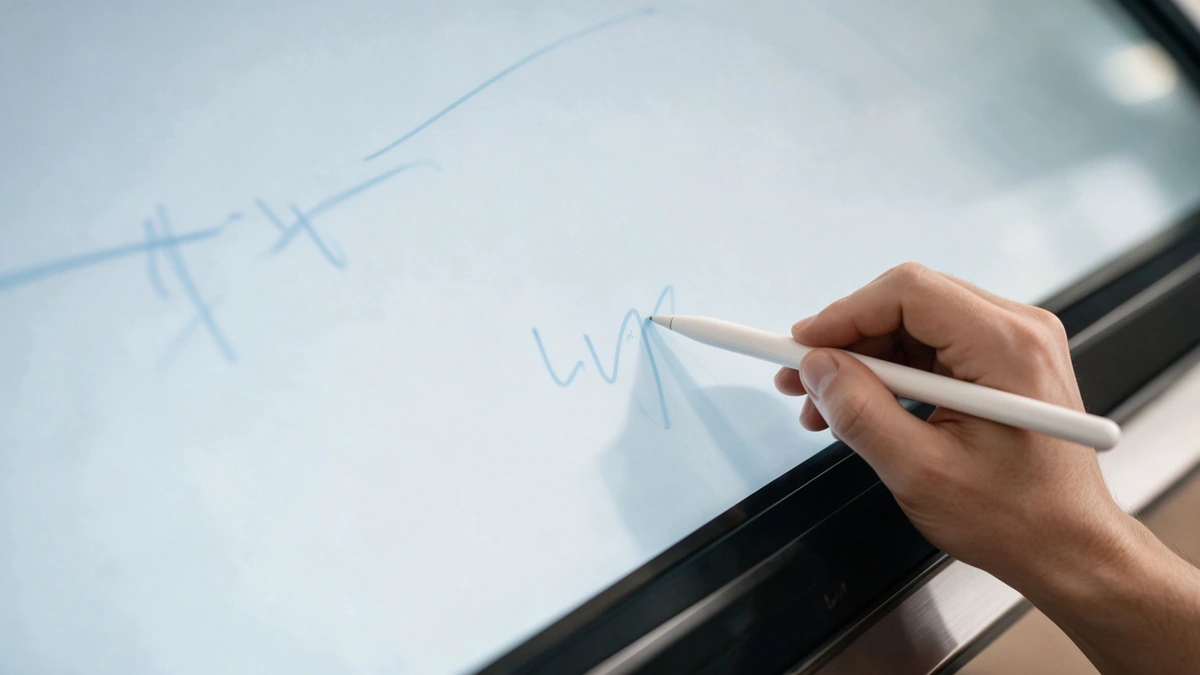
Pen mode and palm rejection settings are the first things to verify when a pen is not recognized.
Spare pens, mounting parts and other consumables can be ordered together with the panel; see the Qtenboard interactive whiteboard accessories range.
Room-by-room troubleshooting does not scale. A district with seven campuses and a small IT team needs a support flow that resolves most tickets without anyone walking into the classroom. The model below is the one we recommend to distributors and school IT departments.
| Level | Who | What they do | Typical tickets |
|---|---|---|---|
| L1 – Site | Campus IT coordinator or room owner | Run the triage table, clean the surface, check cables and source, restart | No touch, offset, cleaning-related ghost touch |
| L2 – Distributor or integrator | Technical support of the local partner | Recalibrate, update the firmware, replace pens and cables, apply settings across the group | Repeated offset, lag, firmware-related faults |
| L3 – Manufacturer | Qtenboard technical support | Remote diagnosis through the device management system, log analysis, parts and replacement decisions | Confirmed sensor, board or batch-level faults |
A remote device management system (DMS) changes this flow. Instead of a technician visiting every room, the support team checks device status, pushes a firmware update or settings change to a group of panels, and confirms the result on the dashboard. Our article on interactive whiteboard remote management and OTA updates shows how this reduces on-site work in multi-campus projects, and the same DMS runs on the 86-inch conference room panel used by corporate fleets.
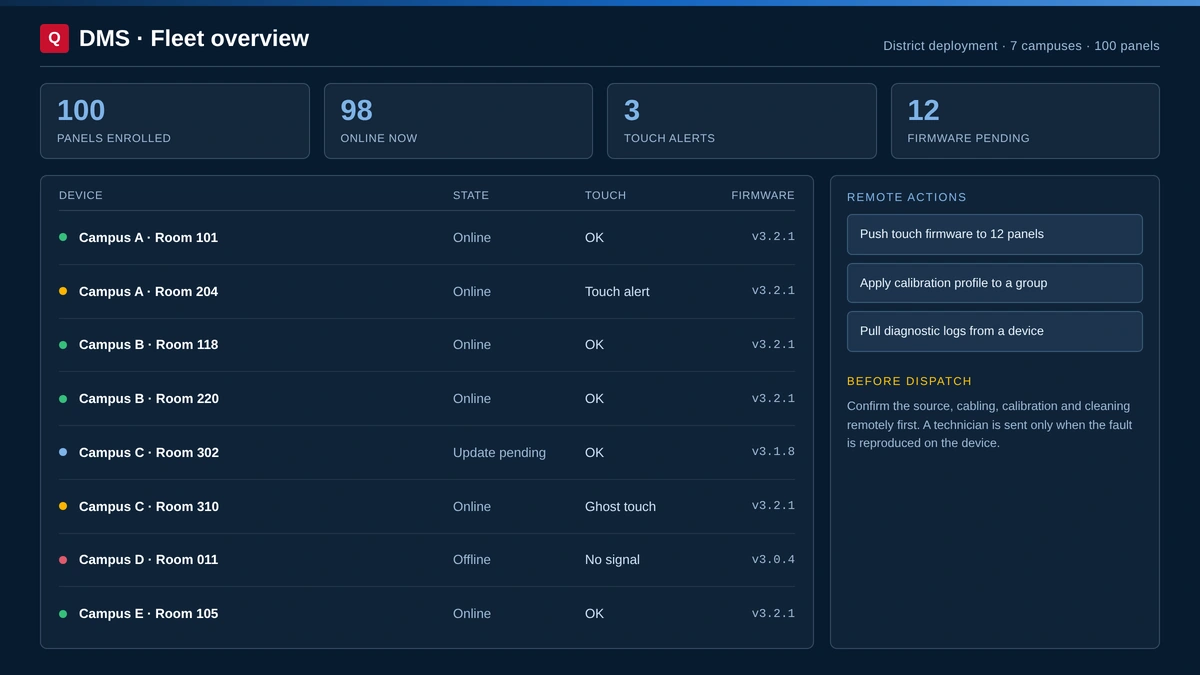
Remote diagnosis through a device management dashboard resolves many tickets before any technician is dispatched.
With these six items, a technical support engineer can often identify the cause in the first reply. For return and replacement terms, refer to the Qtenboard warranty policy. Hybrid teaching rooms add a further dependency on cameras, microphones and networks; our hybrid classroom setup guide covers that environment, and an 86-inch AI whiteboard for hybrid meetings is the configuration we usually quote for those rooms.
The cheapest touch fault to fix is the one that never happens. Many of the problems above are strongly influenced by what was specified at purchase. When you write a request for quotation, compare these items line by line.
| Pagtukoy | How it affects touch faults | What to ask the supplier |
|---|---|---|
| Touch technology (infrared or capacitive) and touch points | Determines which interference sources and which cleaning rules apply, and how many users can write at once | Which technology and how many touch points per model; interference tolerance |
| Screen structure (full lamination or air gap) | Affects parallax, touch precision and dust ingress | Is the screen fully laminated; what is the glass specification |
| Chipset generation and memory | Decides whether touch stays responsive when several apps run | Which processor and RAM/storage configuration |
| System update commitment | Old firmware keeps old touch bugs | How long are system updates and OTA firmware supported |
| Remote management (DMS) | Allows remote diagnosis and group updates | Can the DMS push firmware, apply settings and show device health |
| Certification | Reduces compliance and interference risk | Original CE, FCC and RoHS certificates; Google EDLA where required |
| Warranty and after-sales response | Defines how fast a real fault is solved | Warranty length, response time, spare-part availability |
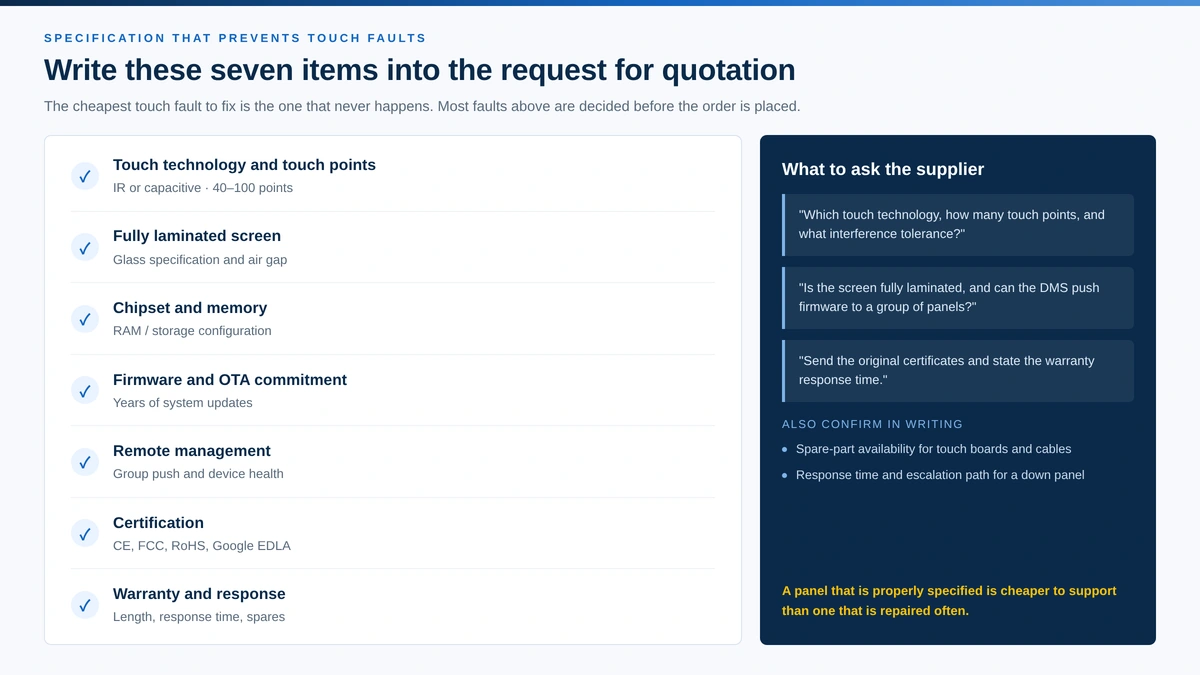
Specify touch technology, structure, processor, updates and support before the order is placed.
For the full buying checklist, read how to choose an interactive whiteboard in 2026. For platform and certification questions, see EDLA vs AOSP vs Windows dual-OS.
Panel size changes the touch problem too. A 55-inch panel for huddle rooms is written on by one or two people, while a 110-inch interactive whiteboard for auditoriums or a 98-inch interactive flat has to resolve touch across a much larger glass area, so calibration and frame cleanliness matter more, not less.
Interactive whiteboard after-sales support is only as good as the factory behind it. Qtenboard manufactures interactive flat panels from 55 to 110 inches in its own facilities in Shenzhen and Guangzhou, on a 330,000 m² manufacturing base with capacity of up to 200 units per day. Every panel passes an aging test and a reliability test before shipment, which means many touch and stability faults are caught before the product leaves the factory.
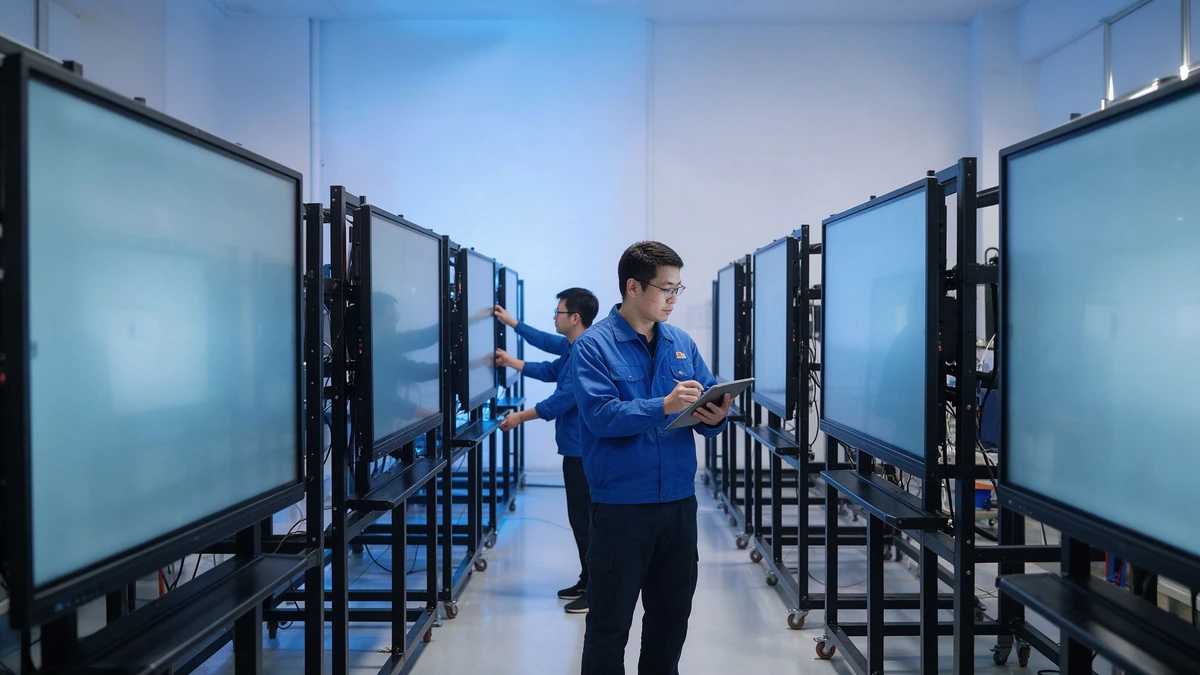
Aging and reliability testing in the Qtenboard factory before shipment.
| Common after-sales risk | How Qtenboard addresses it |
|---|---|
| Touch technology fixed to one type | Both infrared and capacitive touch are available, with 40 to 100 touch points depending on model and configuration |
| Faults that appear only after shipment | On-site aging and reliability testing, with batch-level quality records |
| Slow response to a down panel | 24-hour after-sales response |
| Unclear warranty terms | Warranty of 1 to 3 years, defined by model and project; see the warranty policy |
| On-site visits for every fault | DMS remote diagnosis and OTA firmware updates for groups of panels |
| Compliance documents missing at tender | CE, FCC, RoHS, ISO 9001 and Google EDLA certification |
| Little room for brand or software changes | OEM, ODM, CKD and SKD supply with UI, boot screen and language customization |
Distributors can match the panel to the project with the interactive whiteboards for schools and the interactive whiteboards for business ranges, and download the Qtenboard catalogue for specifications. For complete classroom and meeting-room packages, see the interactive whiteboard education solutions and the interactive whiteboard meeting solutions.
Need a panel and a support model that fit your project?
Makipag-ugnay sa AtinQtenboard supplied 100 interactive whiteboards for a school project in Thailand. A deployment of this size shows why a support process matters more than a single repair. With 100 panels spread across several rooms, one recurring touch problem becomes dozens of tickets if nobody owns the first response.
The support approach for projects like this follows the model described above: panels are aging-tested before shipment, school staff receive the triage table so that calibration and cleaning issues are solved on site, the local partner handles second-level checks, and Qtenboard engineers join through remote diagnosis when a ticket needs the manufacturer. The result is fewer unnecessary returns and a documented path that school IT teams can rely on. You can see how we position panels for this market on our page for interactive whiteboards for Thailand schools and in our successful cases.
Tandaan: troubleshooting menus and calibration paths differ by model, touch technology and system version. Always follow the manual of the specific panel, and contact support before opening the housing or applying any repair that is not described in the documentation.
The most common reasons are a wrong input source, a loose touch USB cable, a system freeze or a calibration setting. Check the source and cable, restart the panel and run the calibration tool before assuming a hardware fault.
Drift usually comes from a resolution or scaling mismatch or a lost calibration. Set the external computer to the native panel resolution, review display scaling and run the interactive whiteboard touch calibration again.
On infrared panels, dust, strong light and frame pressure are the usual triggers. On capacitive panels, moisture, static and electrical noise are more likely. Clean the glass and frame, reduce strong light, check mounting and grounding, and update the firmware.
Many can. Firmware updates, system settings and calibration steps can be handled through a device management system, so remote diagnosis often solves the ticket before a technician is sent.
Check the pen mode, the palm-rejection setting and the pen tip, then test with a second pen. If a finger works in every mode, the touch layer is normally healthy.
Send the panel model, serial number or batch, touch technology, firmware version, a precise description of the symptom, a short video and the steps you have already tried. This lets the support team identify the cause faster.
Warranty is 1 to 3 years depending on model and project, and the after-sales team responds within 24 hours. See the warranty policy for details.
Most tickets titled "interactive whiteboard not working" are solved by a short, repeatable sequence: classify the symptom, check calibration, clean and inspect the surface and frame, review system load, verify pen settings and escalate with complete information. Fleet-level interactive flat panel troubleshooting, backed by remote diagnosis and a clear warranty, turns touch faults from a source of complaints into a measure of supplier quality. Choosing a manufacturer with testing, remote management and fast after-sales response is the most effective way to keep panels working. If you are planning a school or business project, the Qtenboard team can help you match the right panel and support model to your rooms.
Planning a project or need after-sales support for your interactive whiteboards?
Makipag-ugnay sa Atin
 FIL
 EN
 MAY
 TH
 CHT
 SIN
 BUR
 VIE
 ID
 LAO
 HKM